
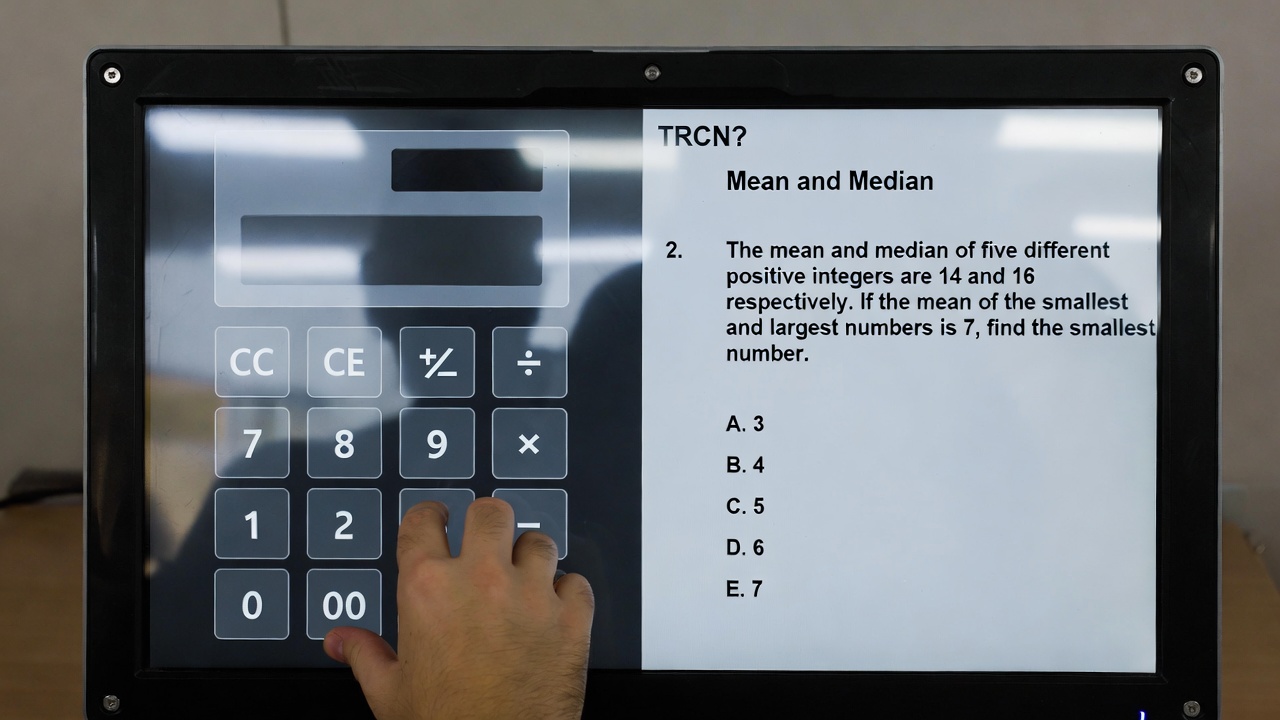
One of the biggest surprises for TRCN candidates is arriving at the exam center and being told: “No physical calculators allowed.” If you haven’t practiced with a mouse-driven interface, trying to solve “Simple Interest” or “Statistics” questions while clicking buttons on a screen can eat up your 60-minute time limit. For the 2026 PQE, mastering the On-Screen Calculator is a non-negotiable technical skill.
1. Where to Find the Calculator
In the TRCN CBT environment, the calculator isn’t always visible. Look for a small calculator icon usually located in the top-right corner of your exam window or directly above the question text.
- To Open: Click the icon once.
- To Move: Click and drag the “Title Bar” of the calculator if it is covering the question text.
- To Close: Click the “X” on the calculator. Note: Closing it does not clear your current calculation; it just hides it.
2. How to “Type” on the Digital Calculator
There are two ways to input numbers. One is safe; the other is fast.
- The Mouse Method (Safest): Click each number and operator (+, -, \times, \div) using your mouse. This is slower but prevents “Keyboard Ghosting” (where the computer doesn’t register a keypress).
- The Numeric Keypad (Fastest): Most TRCN centers allow the use of the physical numeric keypad on the right side of your keyboard. Ensure Num Lock is ON before the exam starts.
3. Understanding the “C” and “CE” Buttons
In the heat of the exam, many teachers make a typo and restart the whole calculation. Save time by knowing the difference:
- CE (Clear Entry): Erases only the last number you typed. If you meant to type 50 + 5 but typed 50 + 6, hit CE to erase the 6 and then type 5.
- C (Clear): Erases the entire calculation. Use this only when starting a brand-new problem.
4. Technical Limitations You Must Know
The TRCN On-Screen Calculator is a Standard Calculator, not a Scientific one.
- No “Formula” Memory: It cannot solve complex algebraic equations (x^2 + y = z) automatically. You must do the logic on your provided rough sheet and use the calculator only for the final arithmetic.
- No Fractions: To calculate \frac{3}{4}, you must input 3 \div 4 = 0.75.
- Single Operation: It usually follows the order you input, not necessarily advanced BODMAS logic. It is best to calculate one step at a time.
5. Practice Drill: The “5-Second” Calculation
Before the exam begins, during the “Instruction” phase (when the timer hasn’t started), locate the calculator. Open and close it three times to ensure it doesn’t lag. If the calculator window takes more than 2 seconds to appear, alert the technician immediately—this is a sign of a slow terminal that could freeze during the math section.
Pro-Tip: Don’t use the calculator for simple math like 12 \times 5. Reserve it for multi-digit division and percentage-based “Educational Statistics” questions to save your mouse-clicking energy!