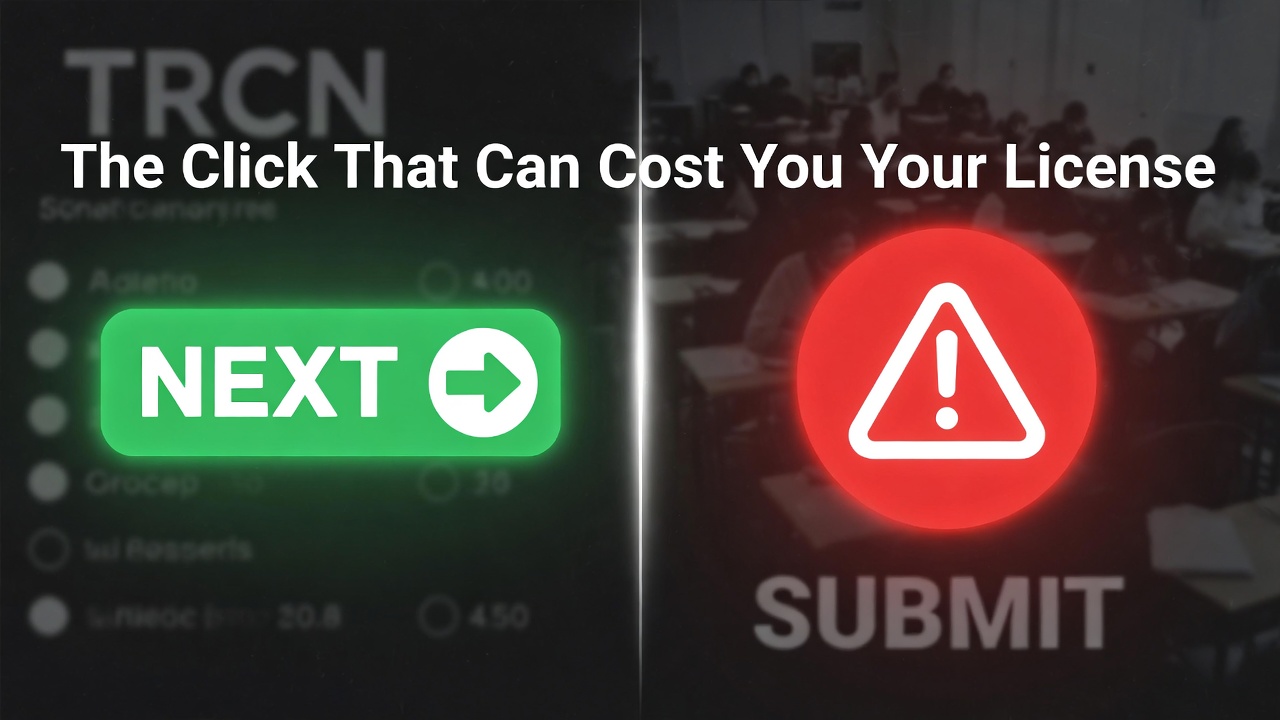
In the high-pressure environment of the TRCN Professional Qualifying Examination (PQE), a single mouse click can be the difference between a “Pass” and a “Resit.” While the interface is designed to be user-friendly, the most common technical disaster reported by candidates isn’t a computer crash—it’s accidental submission.
Understanding the psychological and technical difference between the Next button and the Submit button is your first step toward exam mastery.
1. The “Next” Button: Your Best Friend
The “Next” button is more than just a page-turner. In the TRCN CBT architecture, clicking “Next” performs three vital background actions:
- Data Syncing: It sends your selected answer from the local terminal to the central TRCN server.
- Auto-Save: It creates a “restore point.” If your computer loses power, the system remembers every answer you “Next-ed.”
- Navigation: It advances the question counter (e.g., from Question 14 to 15).
Technical Rule: If you select an answer but the power goes out before you click Next, that specific answer may not be recorded. Always click Next immediately after choosing your option.
2. The “Submit” Button: The Point of No Return
The Submit (or Finish) button is the “Kill Switch” of your exam. Once clicked and confirmed, your session is terminated, your score is locked, and your computer returns to the login screen.
The Danger Zone:
On many older CBT interfaces, the “Submit” button is placed dangerously close to the “Next” button. In the heat of the moment, a shaky hand or a fast click can lead to an accidental finish when you are only on Question 5 of 60.
3. How the TRCN Software Protects You (The Confirmation Pop-Up)
The 2026 TRCN software includes a “Safety Net.” When you click Submit, the system will trigger a dialogue box:
- Pop-up 1: “Are you sure you want to end this examination?”
- Pop-up 2: “You have 45 unanswered questions. Do you still wish to submit?”
The Mistake: Many candidates, thinking they are clearing a technical glitch or a “Next” confirmation, click “Yes” rapidly without reading. Never “double-click” through pop-ups.
4. When Should You Actually Click Submit?
Follow this 3-Step Final Check before touching the red button:
- The Progress Map: Look at the grid of question numbers (usually on the right side of the screen). Ensure all numbers are colored (indicating they are answered) and no “Flags” remain.
- The Timer Check: If you have 10 minutes left, do not submit. Use that time to review “Pedagogy” questions, which are often wordy and contain trick options.
- The Verification: Ensure your TRCN Registration Number is still visible at the top. If the system has logged you out, do not click anything; call an invigilator.
5. What to Do If You Accidentally Submit
If you accidentally click through the confirmations and your screen goes blank:
- Do not leave your seat.
- Do not restart the computer.
- Call the Technical Lead immediately. In some centers, if the “Final Submission” hasn’t fully synced with the server, they might be able to reactivate your session, though this is rare and at the discretion of the TRCN officials.
Summary: Treat the “Next” button like a step forward, and the “Submit” button like a locked door. Don’t lock the door until you are sure you’re ready to leave the room!