For many teachers, the primary source of anxiety regarding the Professional Qualifying Examination (PQE) isn’t the subject matter—it’s the computer interface. The Teachers Registration Council of Nigeria (TRCN) uses a specific, customized CBT (Computer-Based Test) environment designed for stability, but it often looks different from JAMB or other exams you may have taken.
If you don’t know what the buttons mean, you risk wasting valuable time, or worse, clicking “SUBMIT” before you are ready.
This 2026 visual guide removes the guesswork. We will walk you through exactly what your screen will look like on exam day, button by button.
1. The Secure Login Screen (Accreditation)
Upon arriving at your designated workstation, you won’t see a regular desktop environment. The computer will be locked into the TRCN Examination software. The first screen you see is the Login/Accreditation Screen.
Visualizing the Login:
Your screen will display two primary input fields:
- Username/Registration Number: (This is usually your unique TRCN candidate index number).
- Password/Access Code: (This is often provided at the CBT center or generated when you booked your slot).
Crucial Tip: You must type this exactly as it appears on your examination slip. This interface is case-sensitive (capital letters must be capital, small must be small). If it fails three times, you may be temporarily locked out and must call an invigilator.
2. The Main Examination Interface (Your Workspace)
Once you log in, the test begins, and the primary assessment screen loads. It is divided into five key functional areas that you must understand.
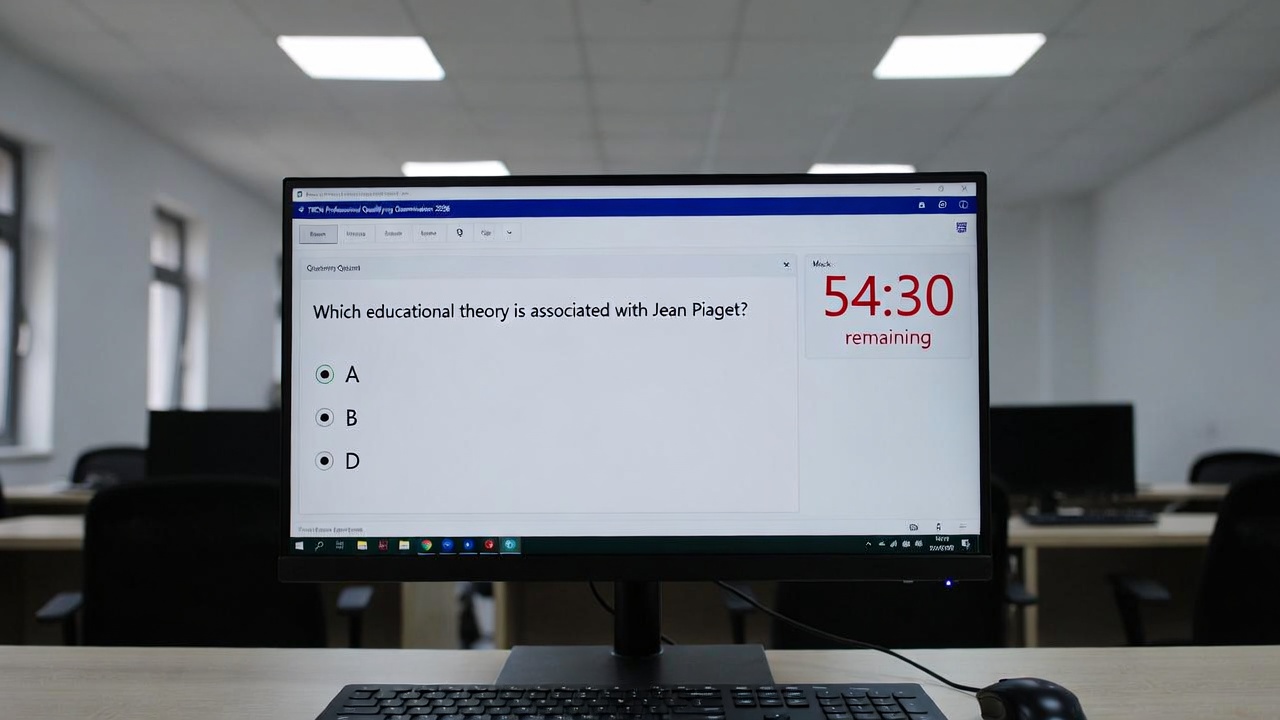
Here is what a typical TRCN Question Screen looks like (Conceptualized Diagram):
[Insert Screenshot Mockup of the Mock Interface here]
The 5 Key Zones on Your Screen:
- Zone 1: Candidate Information Bar (Top Left/Right): This displays your name and passport photograph. Always verify this information as soon as you log in. If the picture is not yours, log out immediately and call an invigilator.
- Zone 2: The Exam Timer (Top Right/Center): Your clock is a countdown timer. For the PQE, you usually have 60 minutes for 60 questions. It will be brightly displayed, showing Hours:Minutes:Seconds (e.g., 00:54:30). When it reaches zero, the system shuts down and submits automatically.
- Zone 3: The Question Panel (Center): This is where the magic happens. The question text will appear here. The text size is standard, but you can usually adjust it for better visibility.
- Zone 4: The Option Selector (Center/Below Question): Below the question are the choices (usually labeled A, B, C, D, E). To select an answer, you must click the radio button or the text of your choice.
- Zone 5: The Navigation Panel (Bottom): This is the most critical technical area.
3. Mastering the Navigation Buttons
The success of your technical CBT experience depends on how you handle the buttons at the bottom of the screen.
Button Name | What It Does (The Technical Function) | When to Use It |
|---|---|---|
PREVIOUS | Moves your view back one question (e.g., from Q7 to Q6). | When you realized you answered the last question incorrectly and need to fix it. |
NEXT | Saves your current answer to the local server and moves you forward one question (e.g., Q6 to Q7). | After selecting your choice and you are ready to continue. |
FLAG / TAG | Extremely Important. This highlights the question number in red/yellow in your progress chart but does not submit an answer. | When you see a question that is too hard. Flag it and skip it. The system allows you to return to all flagged questions later. |
UNFLAG | Removes the flag once you have returned to the question and decided to answer it. | After you have returned to a flagged question and selected an answer. |
SUBMIT / FINISH | DANGER BUTTON. This button ends your entire examination. The TRCN software usually gives you two confirmation pop-ups asking, “Are you sure?” | Only when you have finished all 60 questions AND checked all flagged questions. Do not touch this button before the timer is almost out if you aren’t done. |
The Technical Priority Checklist for Exam Day:
- Verification: Is my name and photo correct?
- Navigation Check: Click “Next” and “Previous” on the first question to ensure they are responsive.
- Flag Usage: If a question takes more than 1 minute to read, Flag it and move on. Speed is everything.
- Auto-Save: The TRCN CBT server automatically saves your work every time you click “Next.” If the power goes out, your answers (up to the last “Next”) are safe.
By understanding this visual walkthrough, you have already reduced your exam-day technical anxiety by 50%. You can now focus 100% on the pedagogy and mathematics, not the keyboard and mouse.
Start practicing now by clicking the link to our Realistic 2026 TRCN CBT Exams practice Simulator!